6. Pages Structure
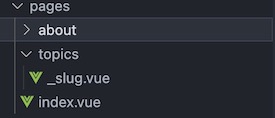
PAGES
6.1. Overview
The pregnancy app uses a dynamic routing system with content-driven pages. The main entry point redirects to a landing page, while all topic pages are generated dynamically through a slug-based routing system.
6.2. Page Organization
frontend/pages/
├── index.vue                    # Root entry point (redirects to landing)
├── landing/                     # Landing page components
│   └── index.vue               # Main landing page
├── about/                       # About page
└── _slug/                       # Dynamic route handler
    ├── index.vue                # Dynamic page component
    └── pageData/                # Content data files
        ├── pageDataLoader.js    # JSON data loader
        └── json/                # JSON data files
            ├── index.json       # Content mapping
            ├── pregnancy-*.json # Pregnancy-related content
            ├── conditions-*.json# Medical condition content
            ├── ultrasound-*.json# Ultrasound-related content
            ├── clinical-*.json  # Clinical care content
            └── support-*.json   # Support services content
The pageData folder contains the content data files for the pages. The file name should be the same as the slug/route name. All page data files are now stored in JSON format for better maintainability and performance.
JSON Data Loading
The application uses a custom JSON data loader (pageDataLoader.js) to dynamically load page data from JSON files. This approach provides:
Lazy Loading: Page data is loaded only when needed
Better Performance: JSON files are parsed faster than JavaScript modules, and can be used in other languages like Python, Java, etc.
Easier Maintenance: JSON format is more straightforward to edit and validate
Consistent Structure: All data files follow the same JSON schema
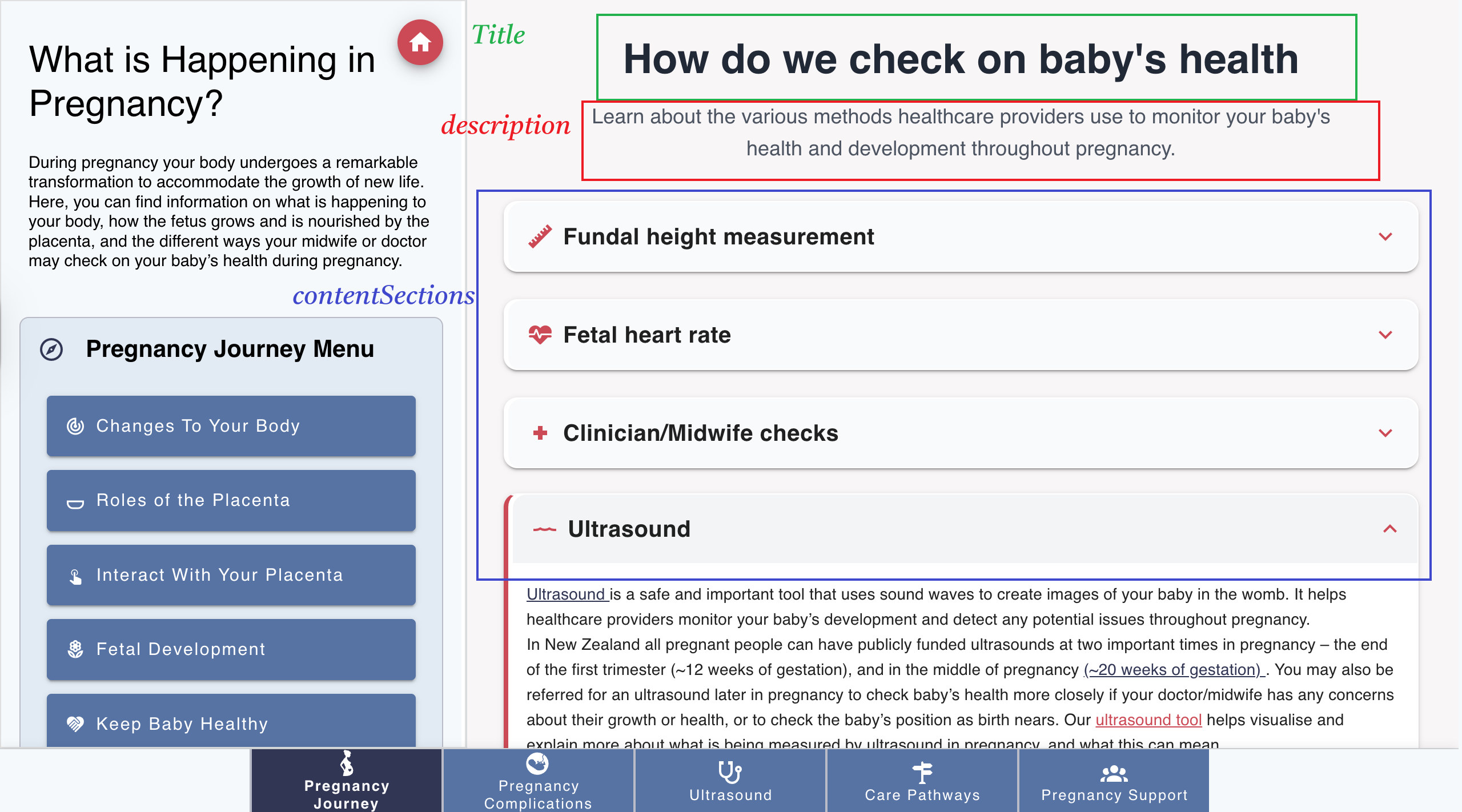
Each page data file contains:
{
    "title": "Sample",
    "description": "Sample",
    "showModel": false,
    "contentSections": [
        {
            "id": "1",
            "title": "Sample",
            "icon": "mdi-heart-plus",
            "iconColor": "var(--v-primary-base)",
            "content": "Sample"
        },
        {
            "id": "2",
            "title": "Fetal Development",
            "icon": "mdi-baby-face",
            "iconColor": "var(--v-primary-base)",
            "component": "PregnancyFetalDev"
        }
    ]
}
See the image below for the page data structure:
If there is only one item in this page, it will be displayed as an article, looks like this:
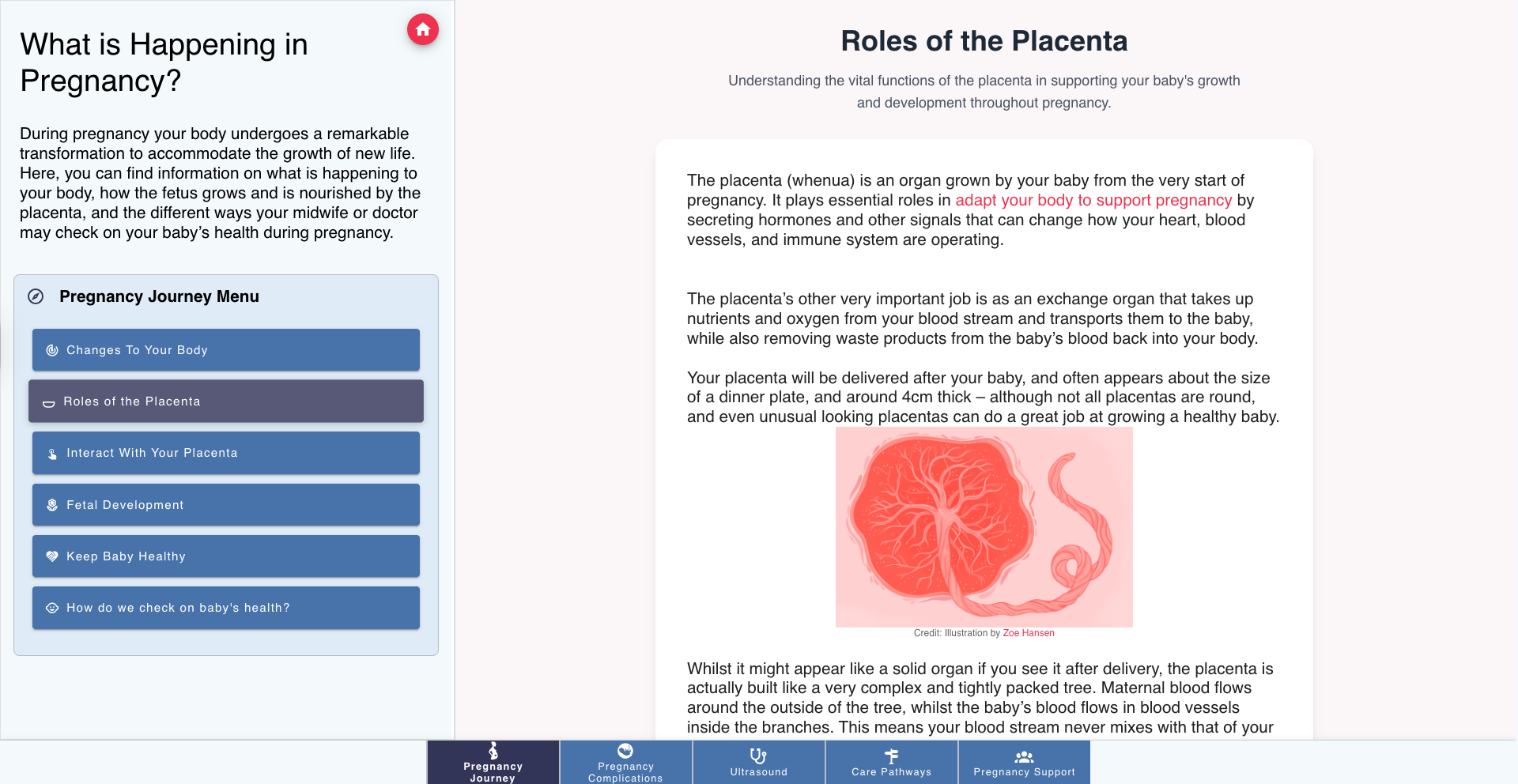
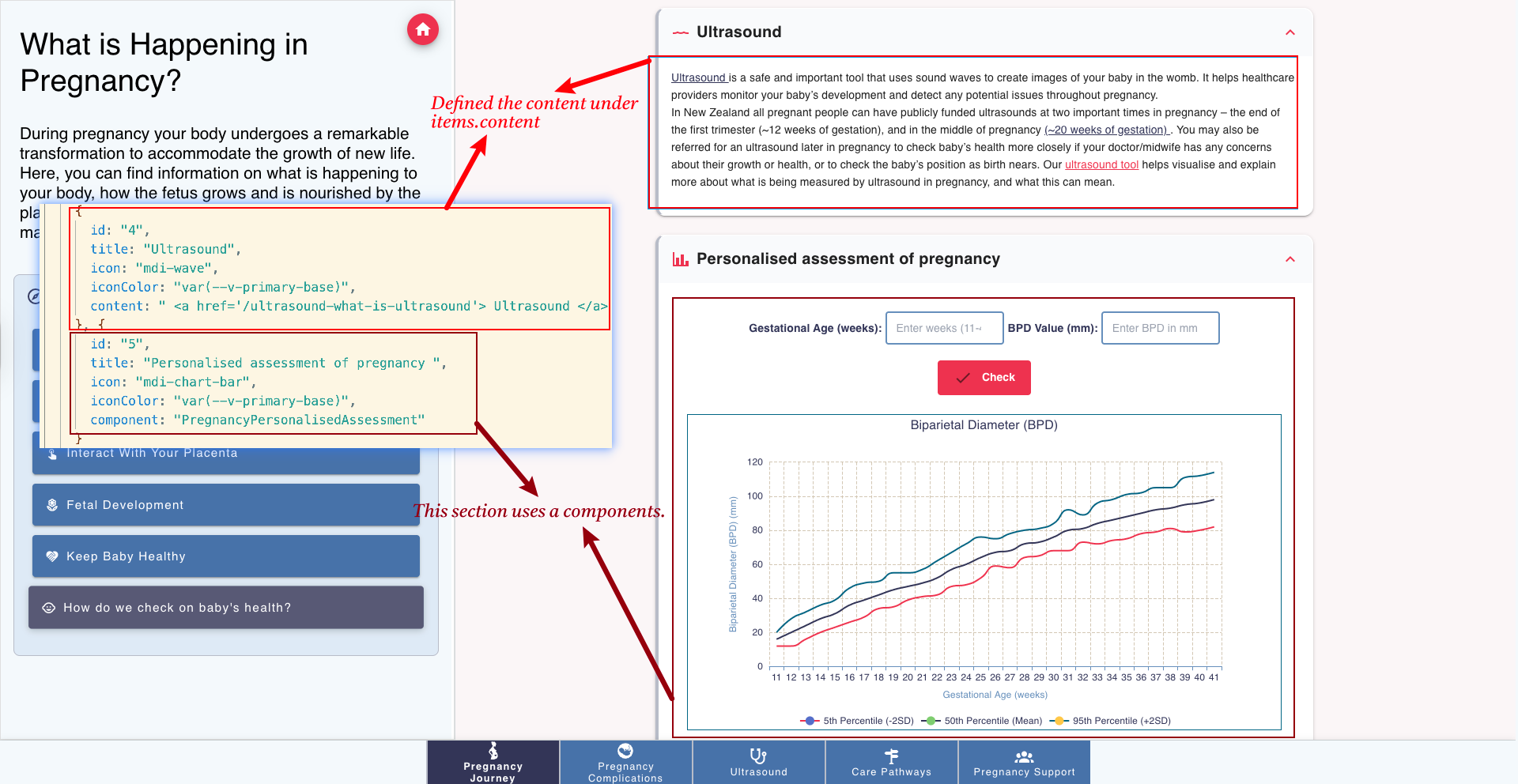
The content of the section can be content or component. The content rendered by ContentPane.vue file, using html, therefore for simple content, you can directly use the content by setting the content in this js file.
If you want to use a component, you can use the component property by putting the name of the component, and store the component in the frontend/components/content folder.
For example, the image below shows one section using component and the other one using html content:
Component Selection
The system automatically selects components based on:
Model pages: showModel: true → RightPane component
Custom components: component specification, will use a component from frontend/components/content folder
Default fallback: ContentPane component